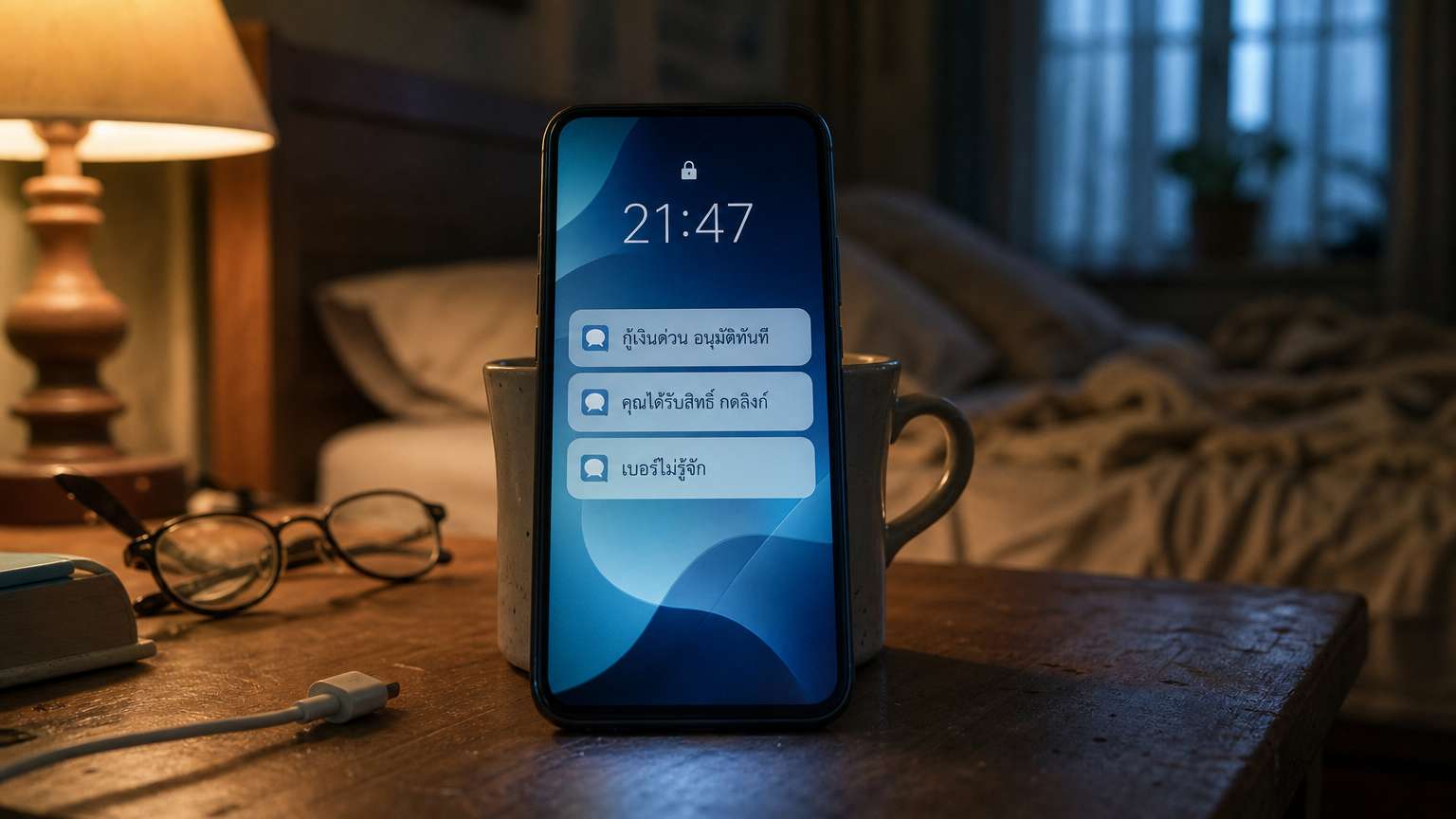
You can block spam text messages and unknown numbers on an iPhone from the Phone and Messages apps. On Android, you can do it in Google's Phone app and the Google Messages app. Beyond blocking one number at a time, both systems let you silence or screen calls and messages from people you do not know. This guide follows the instructions published by Apple and Google. Menu names may differ slightly by phone model and software version.
Block unknown numbers on iPhone
Apple says you can block a number from either the Phone app or the Messages app. Once blocked, messages sent or received between you and that number are not delivered, and the other side is not told they were blocked. The caller can still leave a voicemail, but your phone will not notify you.
- Phone app: tap Recents, tap the number or name, tap the Info button, scroll down and tap Block Caller.
- Messages app: open the conversation, tap the name or number at the top, scroll down and tap Block Caller.
- Add a number in advance: go to Settings, then Privacy & Security, then Blocked Contacts, according to the iOS 26 guide.
If you do not want to block numbers one by one, use call screening. Go to Settings, choose Apps, then Phone, and find Screen Unknown Callers. There are 3 options. Never lets numbers you have not saved ring as normal. Ask Reason for Calling makes the caller state why they are calling before your phone rings. Silence mutes the call and sends it to voicemail. Numbers saved in your contacts always ring normally. Call screening does not work while you are roaming.
On the same page, under Call Filtering, you can turn on a spam filter and a filter for unknown callers. Missed calls and voicemails from unknown numbers are moved to their own list, which you can open with the filter button in the Phone app.
Block unknown numbers and texts on Android
On Android, Google's instructions for the Phone app start from your call history. Texts are handled in the Google Messages app. The steps may differ a little on phones from brands that use their own apps.
- Block a number: open the Phone app, tap More, choose Call history, tap a call from that number, then tap Block / report spam.
- Block calls with no caller ID: open the Phone app, tap More, choose Settings, then Blocked numbers, and turn on the Unknown option.
The Unknown option blocks calls that hide their number or cannot be identified. It does not block ordinary numbers that are simply not saved in your contacts. You can also make the app show caller names and warn you about spam. Tap More, then Settings, then Caller ID and spam. This is on by default. Google says that when a number not in your contacts calls, that number is sent to Google to check whether it is spam, but Google does not receive numbers from your contact list.
On the same page, some phones offer Filter spam calls. Filtered calls do not trigger a missed-call notification but still appear in your call history. Phones with the automatic Call Screen feature do not have this option, because automatic spam blocking is part of that system's settings instead.
Block SMS and filter unknown senders
Google Messages gives you 2 ways to block. In the first, press and hold a conversation in the list, tap Block, choose Report spam and tap OK. In the second, open the conversation, tap More options, choose Details, then choose Block & report spam. The conversation moves to the Spam & blocked folder.
Reporting spam does more than blocking alone. Google says it receives the sender's number and the latest incoming messages, but not messages you replied to, and the sender is not told they were reported. The system may also create a Spam reporting conversation that sends a copy of the number and latest messages to your mobile carrier. If you do not want to report, you can choose to block only.
On an iPhone running iOS 26, open Messages, tap Filters and choose Manage Filtering. Scroll to Unknown Senders and turn on Screen Unknown Senders. You can also reach it through Settings, then Apps, then Messages. The option is off by default, but it turns on automatically if you had Filter Unknown Senders switched on in iOS 18. Messages from unknown senders go into their own filter. If you recognize the sender, tap Mark as Known to move the conversation back to your main list. Replying to a sender does not make them known.
Manage Filtering also has a Text Message Filter for SMS, MMS and RCS. It can work with message-filtering extensions from other developers that you have installed.
What to do if you get a scam SMS
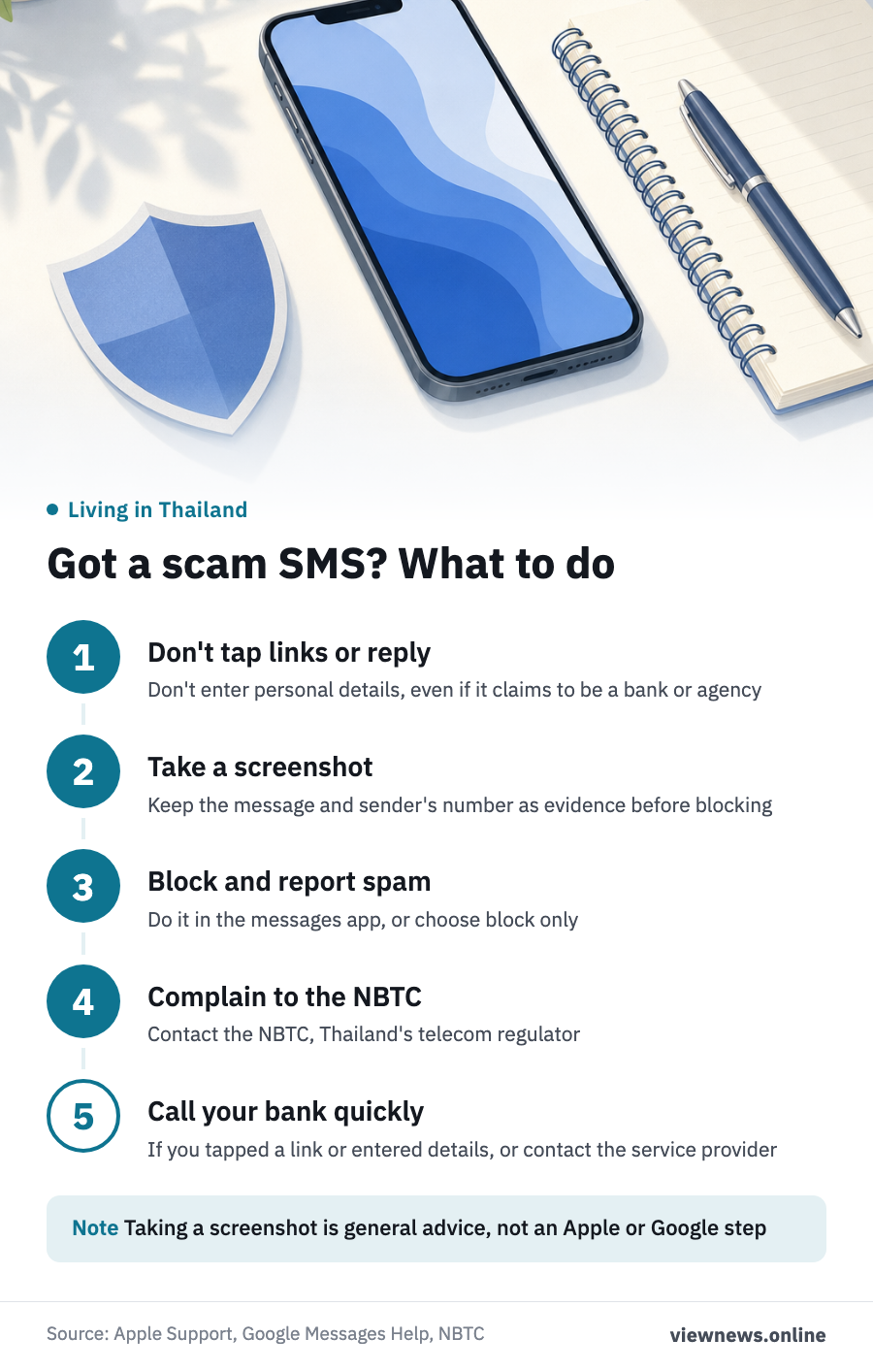
If a text looks like a scam, for example one claiming to be from a bank or a government agency and asking you to tap a link, do not open the link. Do not reply or enter personal details. To file a complaint, you can contact Thailand's telecom regulator, the National Broadcasting and Telecommunications Commission (NBTC). Check with the agency for how to file.
As general advice, take a screenshot of the message and the sender's number before you block or delete it, in case you need evidence when reporting. Then block and report the spam using the steps above. If you already tapped the link or entered details, contact your bank or the relevant service provider as soon as possible.
Source: Apple Support (blocking numbers, screening unknown callers and unknown message senders on iPhone), Google Phone app Help (blocking numbers, Caller ID and spam), Google Messages Help (blocking and reporting spam).
This article is adapted from ViewNews' Thai-language report.